Troubleshooting Common Wi-fi Issues
Understanding Wi-Fi Signal Problems
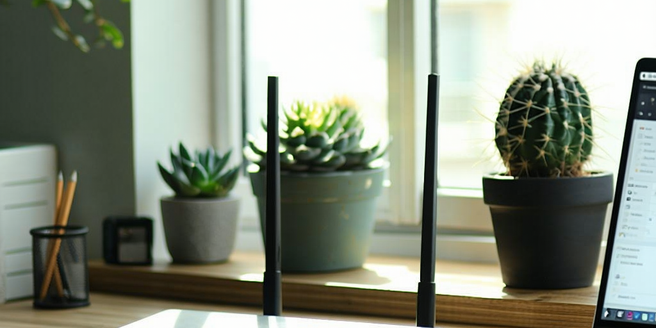
Wi-Fi signal strength can significantly impact connectivity. Factors like distance from the router, physical obstructions, and interference from other electronic devices can degrade signal quality. Walls, floors, and furniture can block signals, while devices like microwaves and cordless phones can create interference. It is vital to position the router in a central location, away from metal objects and appliances. Adjust the router’s antennas and ensure they are oriented correctly. In multi-story homes, consider placing the router on a higher level for better coverage. In some cases, upgrading to a more powerful router or using Wi-Fi extenders may help. Additionally, checking for firmware updates to your router or changing to a less crowded channel can improve signal strength.
Identifying Router Configuration Errors
Router settings can be complex, and misconfigurations often cause connectivity issues. First, ensure the router is broadcasting the correct SSID. Check if MAC address filtering is enabled, which might inadvertently block devices. Confirm that the router’s firmware is up-to-date to avoid software glitches. Another common issue is incorrect security settings—ensure you are using WPA2 or WPA3 for better connectivity and security. DNS settings can also affect network access; using a public DNS like Google’s can resolve such issues. Finally, verify that the DHCP server is active and correctly assigning IP addresses to connected devices. By carefully reviewing and adjusting these settings, you can optimize your network’s performance and ensure stable connectivity.
Resolving Device Connectivity Conflicts
Sometimes, too many devices competing for the same Wi-Fi network can overwhelm the router, leading to connectivity conflicts. It’s crucial to limit the number of connected devices and prioritize bandwidth for essential tasks. Use Quality of Service (QoS) settings in your router to allocate bandwidth effectively, giving priority to tasks like video calls or gaming. Devices with outdated network drivers may also cause issues; ensure updates for these are routinely checked and installed. Furthermore, disconnecting devices that are not in use can free up bandwidth. In environments with many users, such as offices, consider segmenting networks for better load management. By addressing these conflicts, you can improve the stability of your Wi-Fi connection and reduce interruptions.
Addressing Speed and Performance Concerns
Slow internet speeds can result from several factors, including bandwidth limitations from the Internet Service Provider, network congestion, or outdated equipment. To address speed issues, check your internet plan to ensure it meets your usage needs. Running a speed test can help determine if you are receiving the promised bandwidth. If speeds are lacking, try repositioning your router or using Ethernet for devices that require stable connections. Clear the frequency by moving away interference-generating devices. Upgrading older routers to models that support newer standards like Wi-Fi 6 can also enhance speeds. Additionally, contacting your ISP in the event of persistent issues can help identify line faults or service downtimes affecting your connectivity.
Handling Wi-Fi Security and Access Issues
Securing your Wi-Fi network is paramount to prevent unauthorized access and protect sensitive data. Start by setting a robust password that combines letters, numbers, and symbols, and change it regularly. Enabling WPA3 encryption, if available, enhances security compared to older standards like WEP and WPA. Disabling WPS and broadcasting the SSID only to authorized devices are additional steps to tighten security. It’s also recommended to regularly check connected devices through the router’s admin interface and disconnect unknown entities. Setting up a guest network can also help by segregating your primary network from untrusted devices. Implementing these security measures will safeguard your network from potential threats.
Advanced Tools for Diagnosing Wi-Fi Problems
When basic troubleshooting fails, advanced tools can diagnose lingering Wi-Fi problems. Software like Wireshark allows for detailed network traffic analysis, helping to identify misbehaving devices or unusual activity. Applications like NetSpot or inSSIDer can map signal strength and identify interference or dead zones. For router-level diagnostics, many modern routers come equipped with advanced diagnostic features accessible via their admin interface. These features can identify specific issues like packet loss or latency problems. Understanding how these tools function and utilizing them effectively can simplify the process of diagnosing and resolving complex Wi-Fi issues. With the right tools, even the most intricate network problems can be managed efficiently.